As a digital illustrator, I saw many people praising the TourBox controller online and couldn't resist buying their priciest model, the TourBox Elite Plus. So is TourBox suitable for digital artists? In this short review, I want to share my thoughts.
Unboxing and Look
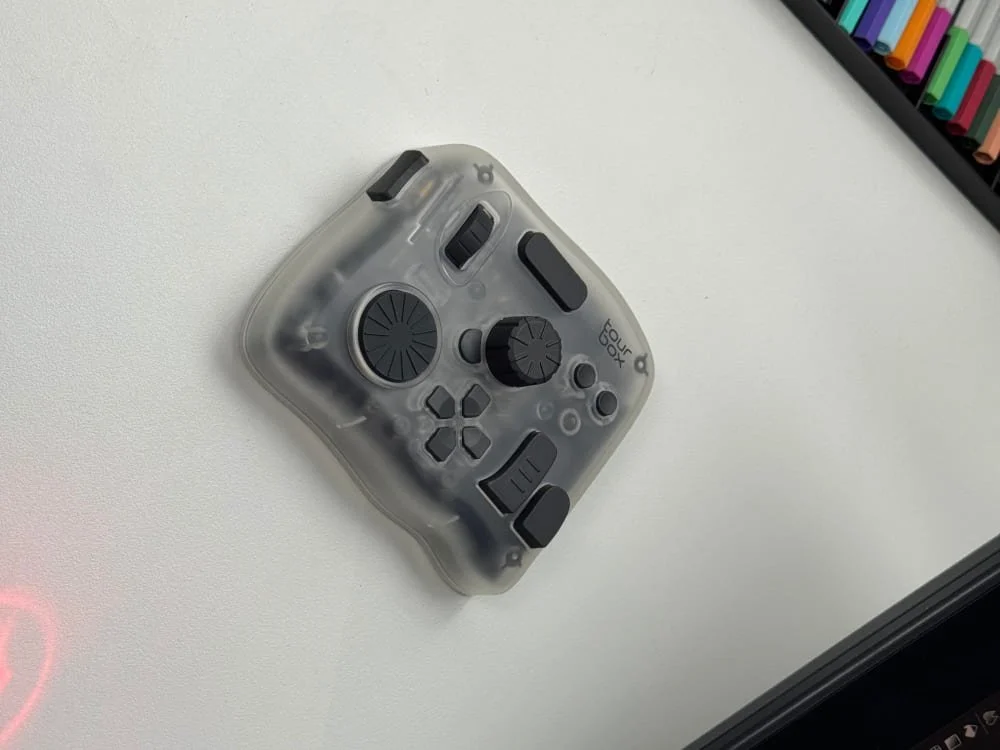
When I first got it, I looked at the outside: the body is made of sturdy matte plastic. It feels tough and does not show fingerprints. The unit is not large and not heavy. The bottom has rubber feet, so it does not slip on the desk.
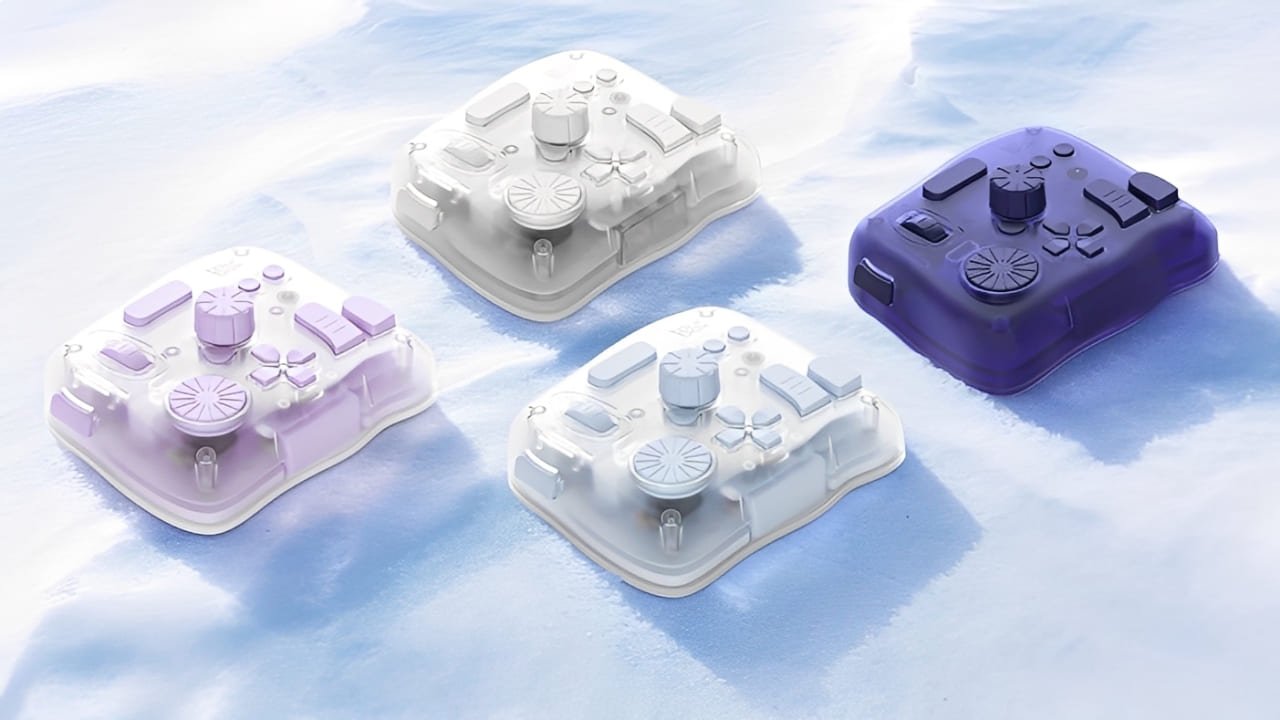
I bought the classic translucent color. You can faintly see the inner parts through the shell. It looks a bit like a retro gamepad—retro and cool.
When I bought it, TourBox had also launched the TourBox Elite Plus Arctic Series with more color options, but those were pre-order only. They had discounts and perks for pre-order, but I didn’t want to wait. So I bought the classic Elite Plus.
The button and knob layout on the TourBox is well thought out. I counted roughly 11 buttons, plus a big dial, a rocker wheel, and a pressable scroll wheel.
Each button and dial has a different shape. They feel different to the touch and give tactile feedback. That helped me build muscle memory fast. For example, I could quickly tell which button is undo and which one switches brush modes.
To be honest, the translucent design in the ads looks very cool and high-end. Up close, though, it’s a little like showing bare electronic parts. It lacks some of the refined feel you might expect from premium gear. I also find the look a bit odd, maybe because I am not fully used to using TourBox yet.
Taste is subjective. I slightly regret not waiting for the Arctic Series. I think those colors might fit my taste better.
Setup Process
The Elite Plus is TourBox’s top model and works on desktops and tablets (including iPads and Android tablets). It can connect via USB-C or Bluetooth. But if you connect to a tablet, you must use Bluetooth. The tablet will see it as an external keyboard.
At first, I plugged the TourBox into my computer via USB and ran the official TourBox Console software (downloaded from their website) to set it up.
In the software, you can load official presets or customize each button and knob. The official presets are already quite good. I only made small tweaks to match my habits.
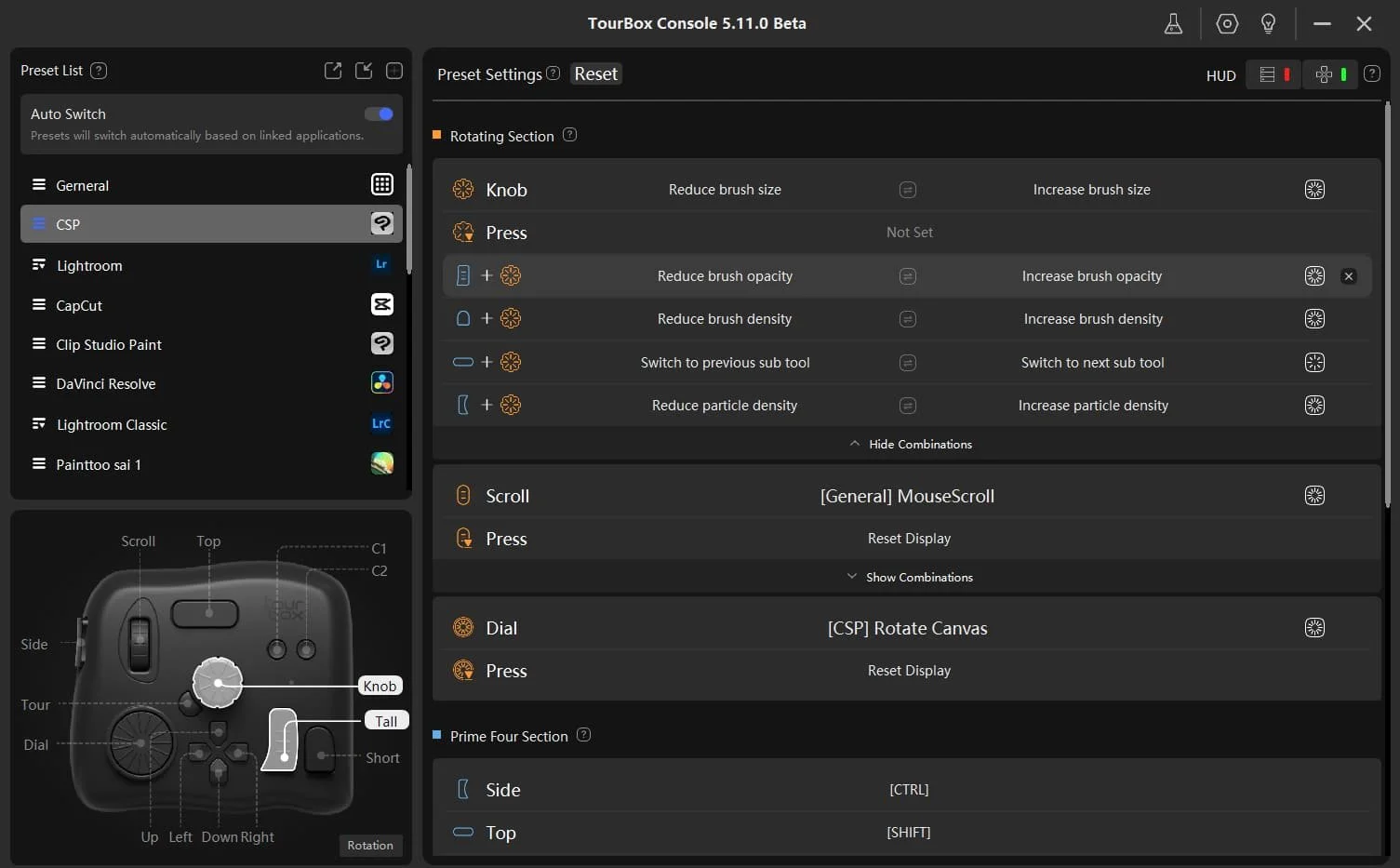
Things like brush size, brush opacity, mouse wheel, and canvas rotation were already set in the official presets. You can add more actions. If you know the shortcuts for CSP or any creative app you use, setup is very simple. The setup interface also shows shortcut hints.
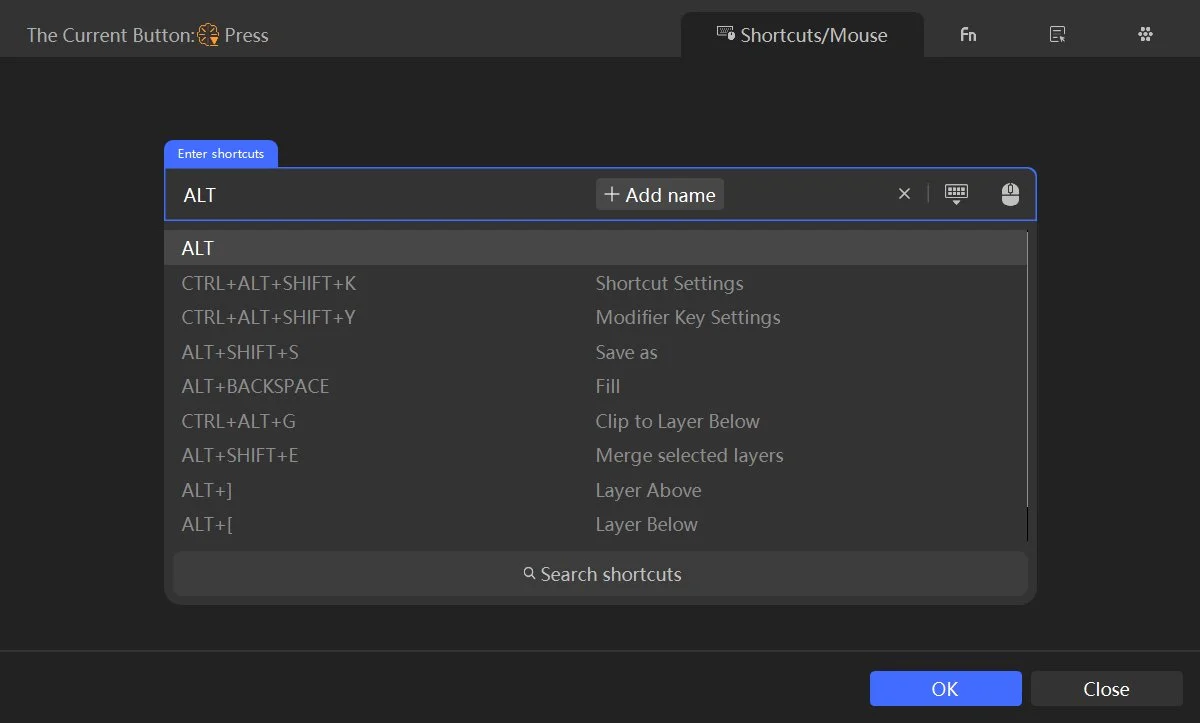
One complaint: TourBox does not seem to have deep built-in support for CSP. For apps like Photoshop and Lightroom, it offers more built-in features. So if you are not familiar with CSP or non-Adobe app shortcuts, the setup can be annoying.
The Elite Plus also works on tablets. I started using it while working on a desktop rather than an iPad. To use it on an iPad, you need the TourBox Console app from the App Store. The setup screen looks like the image below. I can share more detailed thoughts on the iPad experience once I’ve spent more time using it there.
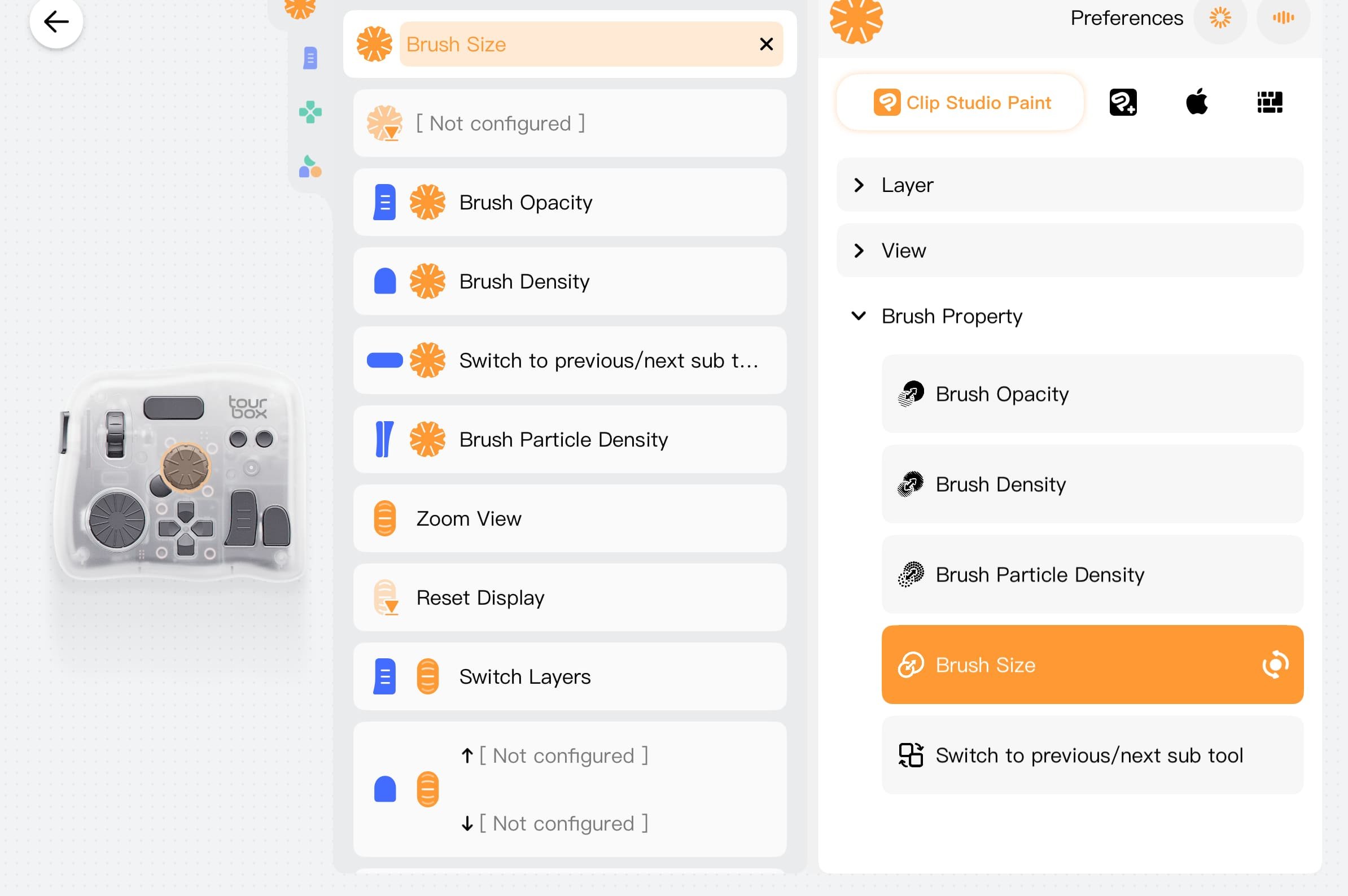
Worth noting: right now, only the Elite Plus supports both desktop and tablet, so it is the most expensive model. But apart from the tablet link feature, the Elite Plus does not differ in major functions from the other models.
So if you work on both desktop and tablet, the Elite Plus might be your best choice. Or like me, if you mainly work on a desktop but aren’t sure whether you might like iPad work in the future, buy the Elite Plus now to avoid regret later.
How It Feels to Use
Honestly, the TourBox setup makes the drawing process much smoother. Small actions that used to need switching brushes, tools, or layers now take one press or one twist on the TourBox.
Adjusting values with a dial feels better and more precise than dragging with a mouse. I especially like using the dial to change brush size. Even after a day of drawing, my fingers don’t get sore. When I used a trackpad or keyboard to change brush size, my wrist got tired. Now the dial feels much more comfortable.
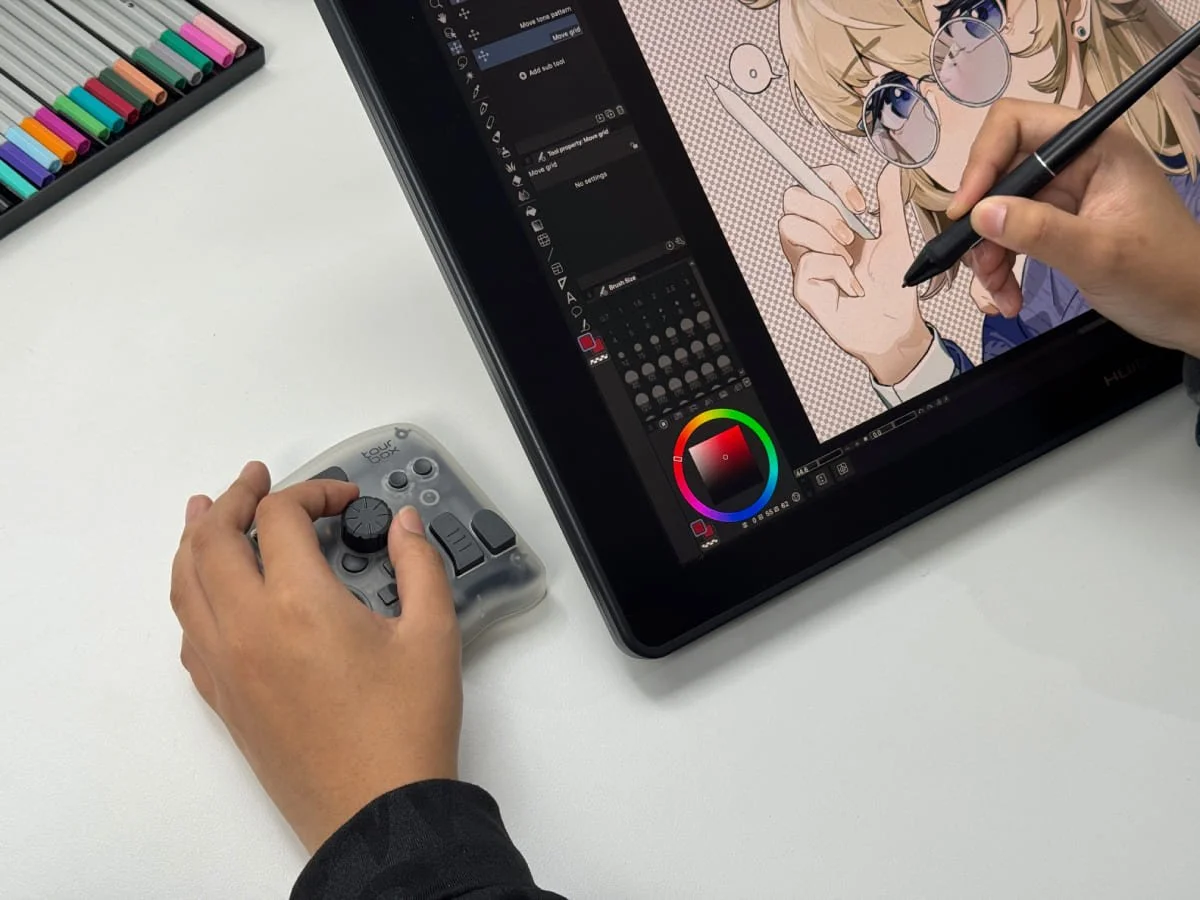
I also love the tactile feedback. With haptic feedback on, you can clearly feel each small adjustment at your fingertips. It feels like touching and changing the image, not just operating software. This control feeling is something a mouse and keyboard can’t match. Because there is no delay, changes show up on the screen immediately, like the software has a “heartbeat” while you work.
That said, TourBox is not an out-of-the-box magic tool. It takes some patience to customize. The first time I used it, I adjusted the Console settings several times to find the most comfortable layout.
This takes time, but once you learn it, the efficiency gains are obvious. It’s like tuning a car to match your driving style. If you are new to digital art, I don’t think TourBox is a must-buy right away.
Frankly, it’s not very beginner-friendly, but if you are an experienced artist, you will pick it up quickly.
Pros and Cons
Overall, the help TourBox Elite Plus gives me outweighs the hassle, but there are small areas to improve. On the plus side: it speeds up my daily drawing work. Many tedious steps become easy.
Using it with CSP feels more efficient. Shortcut commands are at hand. With one move I can switch tools or change settings, and the creative flow stays strong.
But some small details could be better. When I briefly set it up on the iPad, the TourBox dial sometimes felt a bit laggy. Since I mainly work on a desktop, I am not sure whether this is the app or a system conflict. Maybe TourBox will fix this later.
Also, there is a learning curve. To use it well, you must try and tweak buttons in the Console. This tuning can be a barrier for new users.
But once you set your preferred profile, your workflow can improve a lot. It feels worth it.
Final Verdict
In short, for me, the TourBox Elite Plus is worth recommending as an auxiliary device for digital painting. It feels solid and well-made, and it does bring the convenience the ads promise — putting many controls right in your hand.
Especially in Clip Studio Paint, many shortcuts and canvas controls are within reach, which made my drawing flow smoother. The freedom it gives makes creating more fun.
Although it needs time to configure, as a heavy drawing enthusiast, I now treat it as an essential tool. I’m very happy with how it performs.
If you are interested in the TourBox, you can check this page to see the differences between models and some feature demos.
We share works by digital artists as well as digital arts exhibitions, events, and open calls daily on Instagram — follow us for more and subscribe to our newsletter so you don’t miss new blog posts.





![Project Spotlight: pifmgr.dll’s [M]ETAL✨ @pifmgr.dll is a digital artist working at the intersection of audiovisual design, 3D experimentation, and atmospheric world-building. His project [M]ETAL explores metal both as a physical material and a](https://images.squarespace-cdn.com/content/v1/63b2fdbe4376de5bfdc6771f/1779108338452-QO04Q3MMJ3VMU8PJV1MD/image-asset.jpeg)